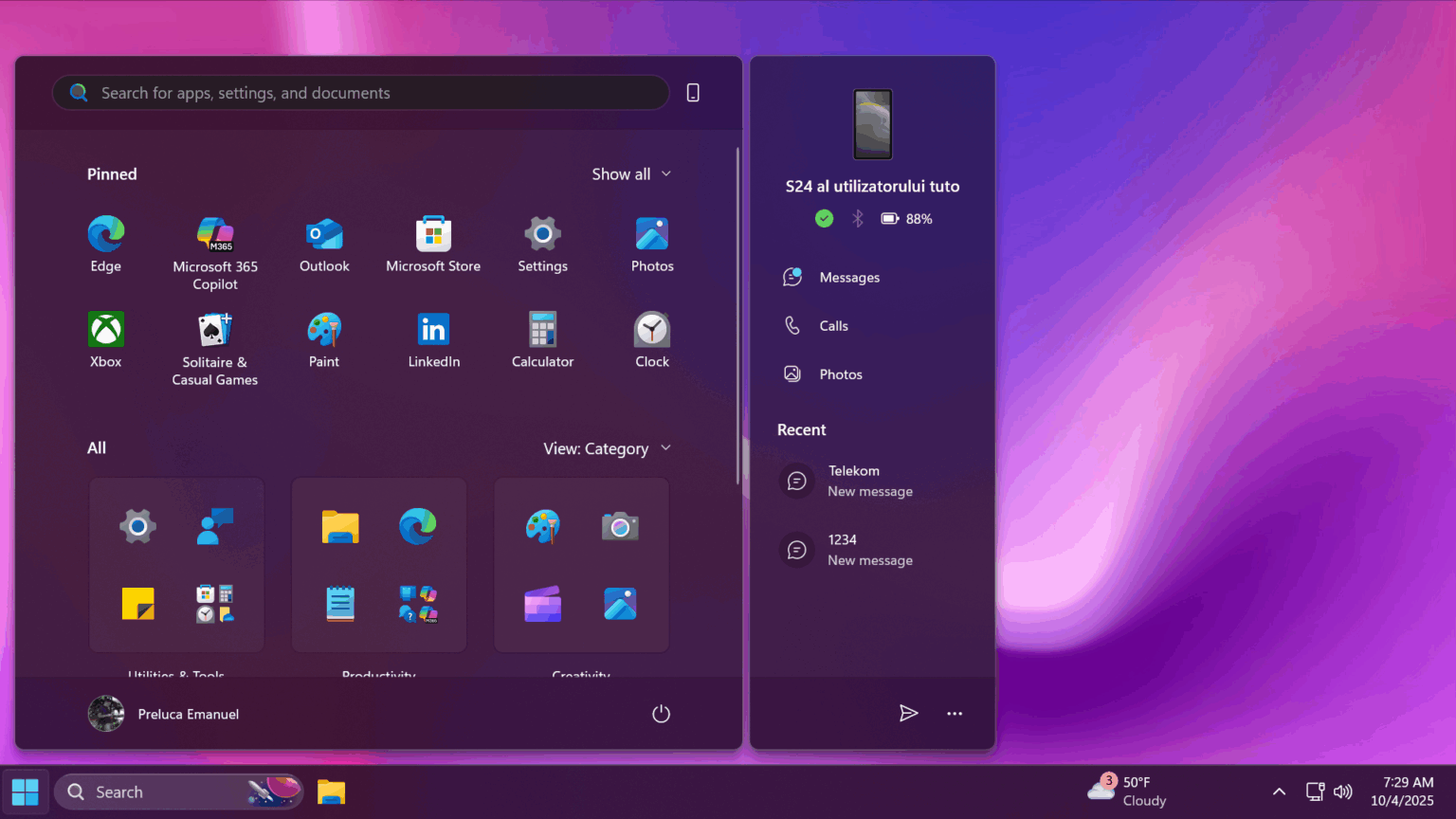
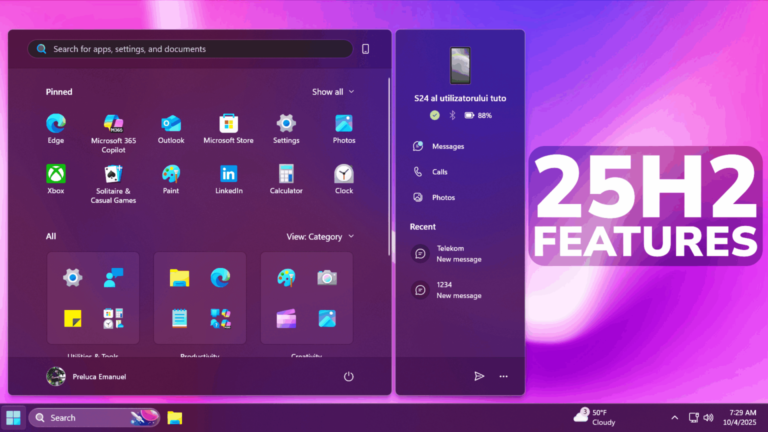
On September 30, 2025, Microsoft released the 2025 update known as Windows 11 version 25H2.
Windows 11 25H2 is delivered as an enablement package (eKB). This means Windows 11 versions 24H2 and 25H2 share the same servicing branch and receive the same set of innovations, features, and enhancements through Microsoft’s continuous update model.
Additionally, version 25H2 removes several legacy components, including:
PowerShell 2.0
Windows Management Instrumentation Command-Line (WMIC)
For enterprise customers, Windows 11 25H2 introduces the ability for administrators to remove certain pre-installed Microsoft Store apps using Group Policy / MDM CSP on Enterprise and EDU devices.
You can find more details about Windows 11 version 25H2 in Microsoft’s official blog.
Downloading ViveTool from GitHub
You must download ViveTool — a small utility that enables hidden or experimental features in Windows.
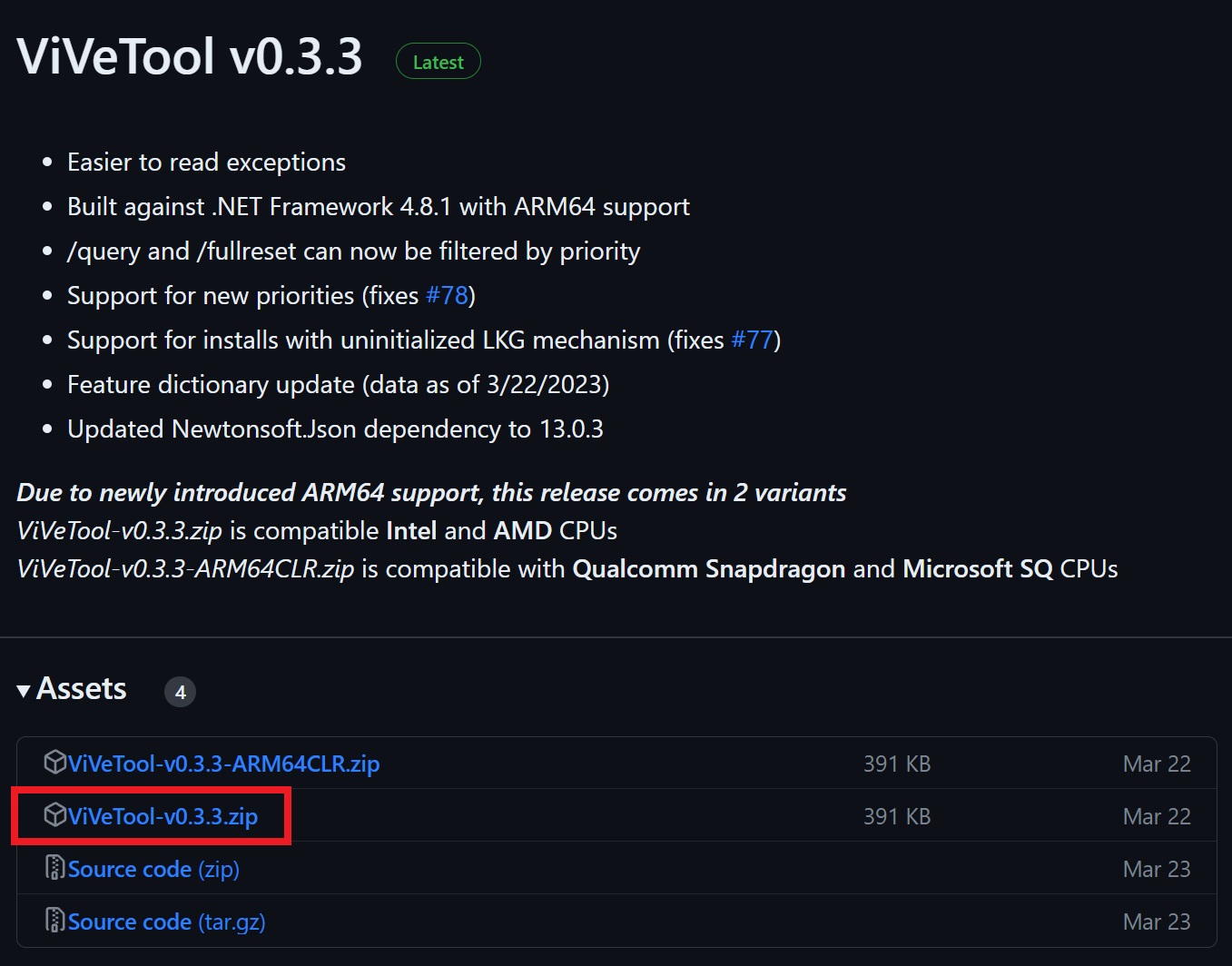
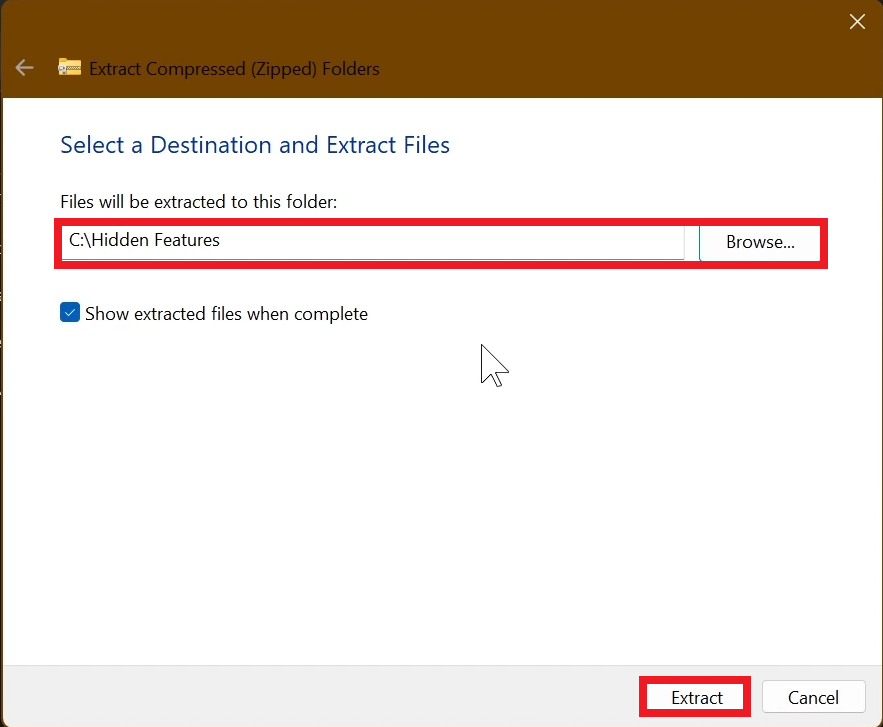
After downloading, extract the archive to any folder:
Right-click → Extract all → Choose folder → Extract.
If prompted for administrative permissions, allow them.
Enabling Features via CMD
Open Command Prompt (CMD) as Administrator.
Navigate to the folder where you extracted ViveTool:
Then run the following commands:
New Start Menu + other UI features:
New AI-powered File Explorer features:
New dark copy dialogs (Dark Mode Copy Dialogs):
Adaptive Energy Saver Mode:
Battery icon with percentage indicator:
New taskbar window animations:
Additional Recommendations
✅ Ensure all Microsoft Store apps are updated:
Microsoft Store → Downloads → Check for updates.
✅ Connect your smartphone using Link to Windows (mobile app) and Phone Link (PC app).
Finishing Up
Restart your PC after running all commands.
After reboot, you should see all new features of Windows 11 version 25H2 enabled on your system.